How To Use osTicket
What is osTicket?
osTicket is what we at Xenter will be using for our help desk support. You will be able to create tickets asking for help with one of the topic options you can select. You can also view the status of your tickets and leave any additional comments after posting the ticket.
Table of Contents
Logging in to osTicket
The website being used for our help desk is
help.xenter.ioOnce at
help.xenter.ioyou can click sign in at the top right of the website.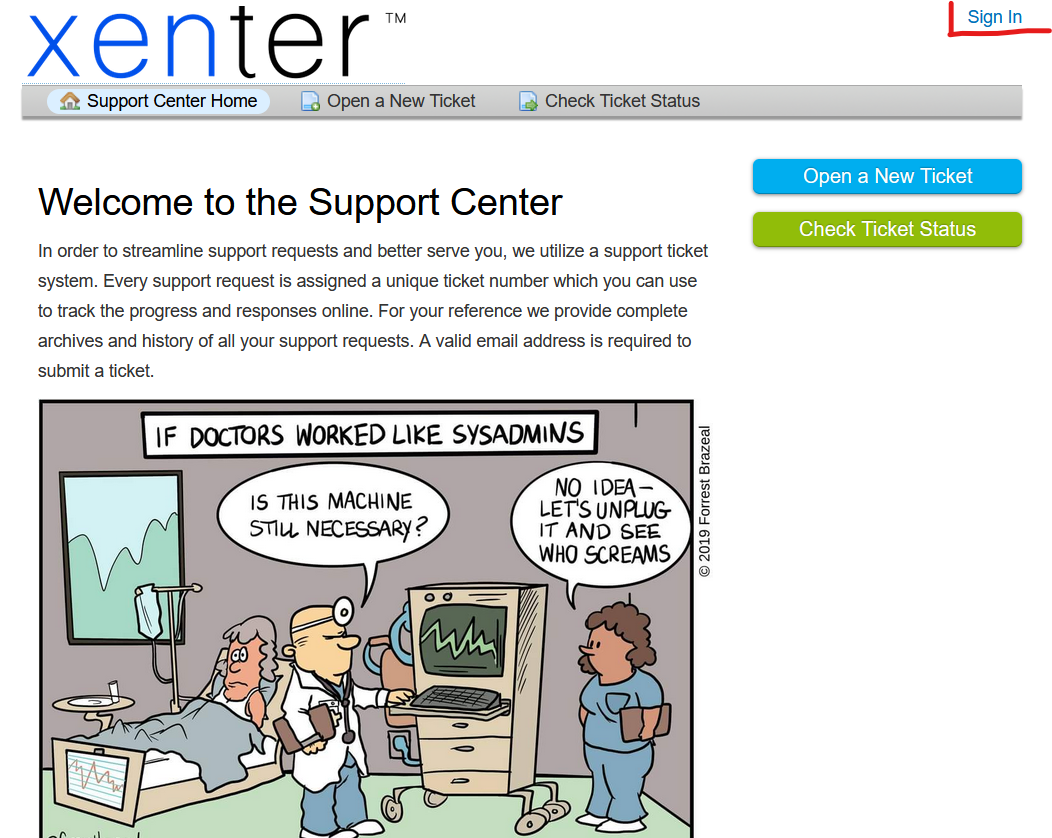
osticket sign in On the right click
Sign in with Azure(Do not enter your login information on the left where it says username and password, you must use Azure)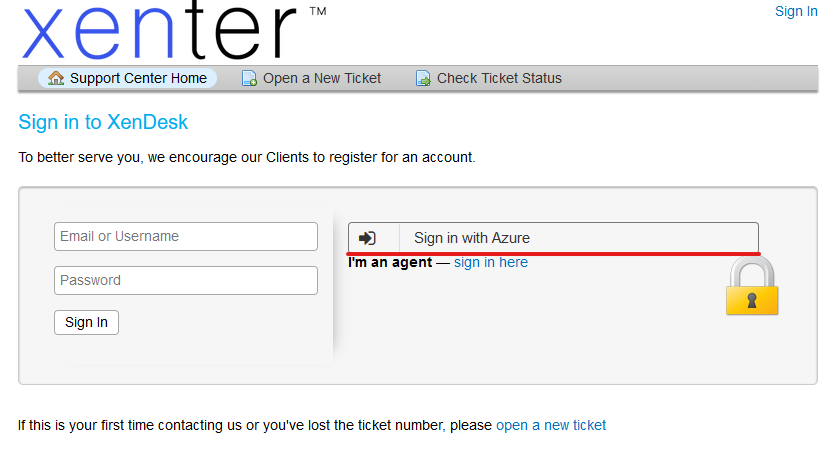
osticket azure Enter your microsoft login using your Xenter email and password if needed. Click yes to any prompts if asked.
Once you are redirected back to the main help desk page, confirm you can see your name in the top right. This is also where you can see open tickets and your profile.
Creating a Ticket
In the main page there are a couple ways you can open a ticket. You can either click the big blue button on the right or the
Open a New Tickettab at the top.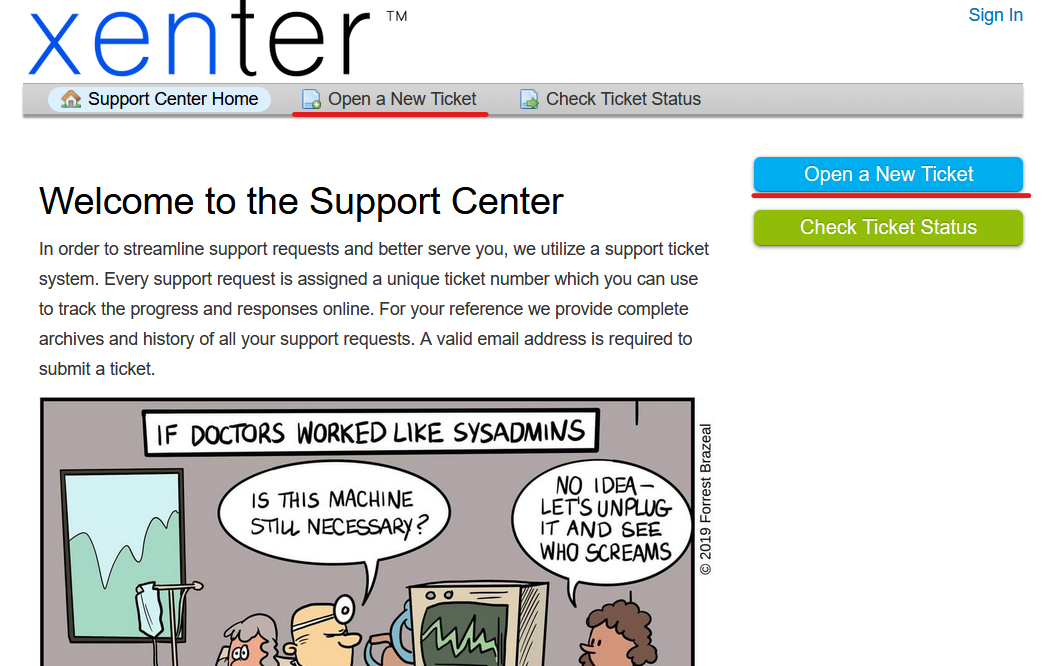
newticket First you will select a help topic. Select the most specific option you can, such as
Requesting Software,Security Incident, etc. If you are not sure where your category falls you can leave it asReport a ProblemFill out a brief name in the
Issue Summarythen go into further detail of your issue in the description box below it. Also, please attach any screenshots of your issue if you are able to. There is a section below the description box asking for adding attachments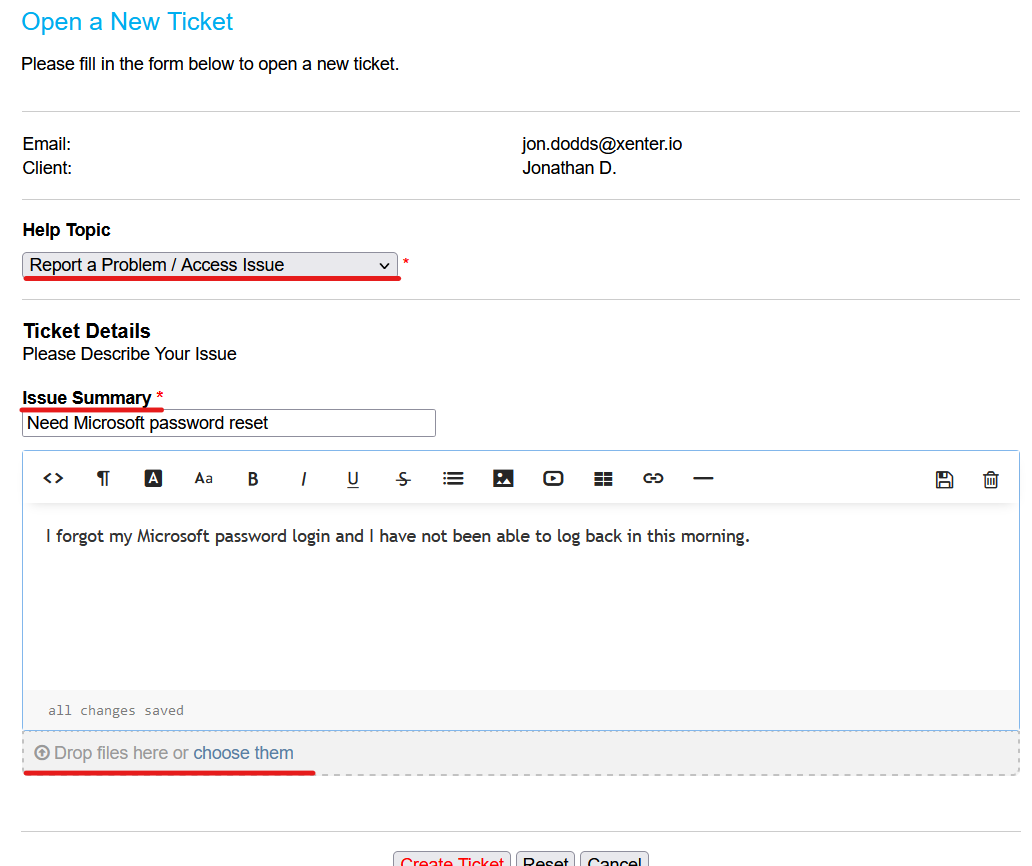
madeticket Then at the bottom click
Create Ticketand afterwards the page displayed will be your new open ticket!You can make another post on this ticket if you have any additional information you would like to add afterwards.
Checking Ticket Status
On the home page for
help.xenter.ioyou can either click the green button on the right for ticket status or clickTicketsin the tab at the top. You can also clickTicketsby your name in the top right.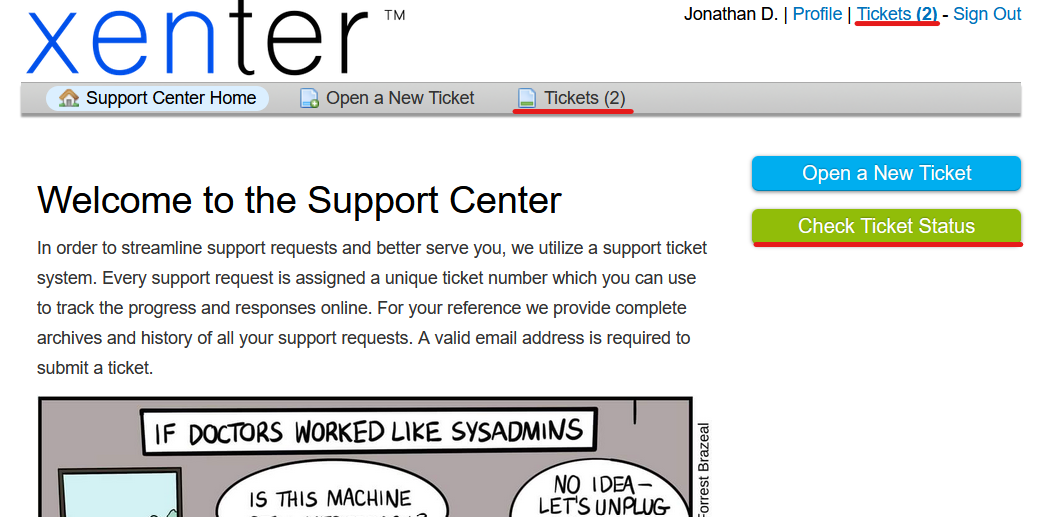
ticketstatus
Help
- If you have further questions about setting up and creating tickets please email it@xenter.io or one of the IT professionals.
- The company VPN
Pritunlwill be required to access the help desk outside of the office. If you are having problems with the VPN contact IT directly via email.